Skip to content
العربيةInstall
MenuClose menu

A desktop browser extension · Works on YouTube

Your translation over the video, from any language to yours

Tarjuman saves YouTube’s subtitles to a file in their own language. You translate that file with the model you choose, into the language you want. Tarjuman then shows your translation over the same video, where you can adjust its timing and edit it.

  • Chrome, Brave, Edge and Firefox
  • Your translations stay on your device
  • No account or API key
  • You choose the model
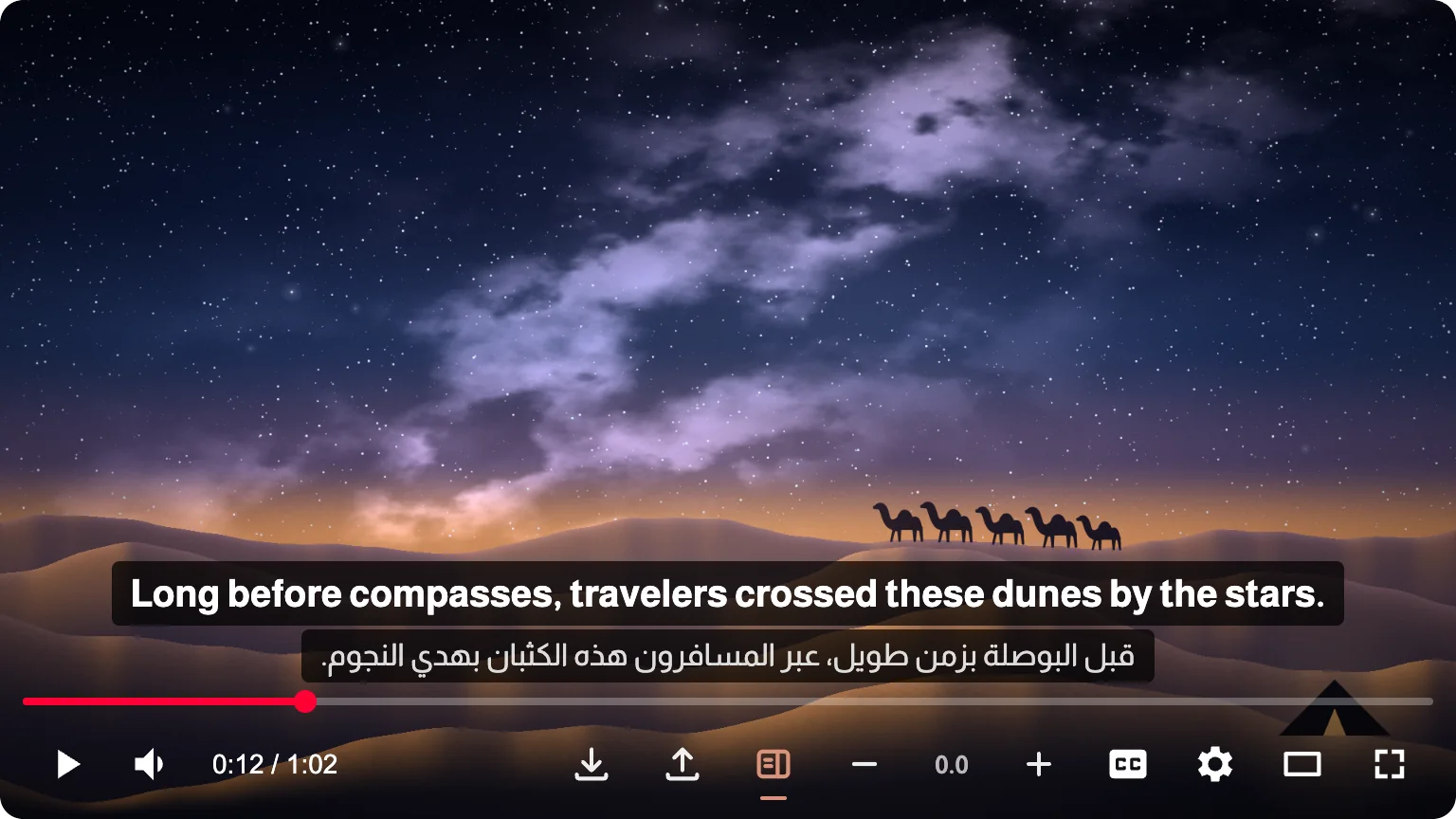
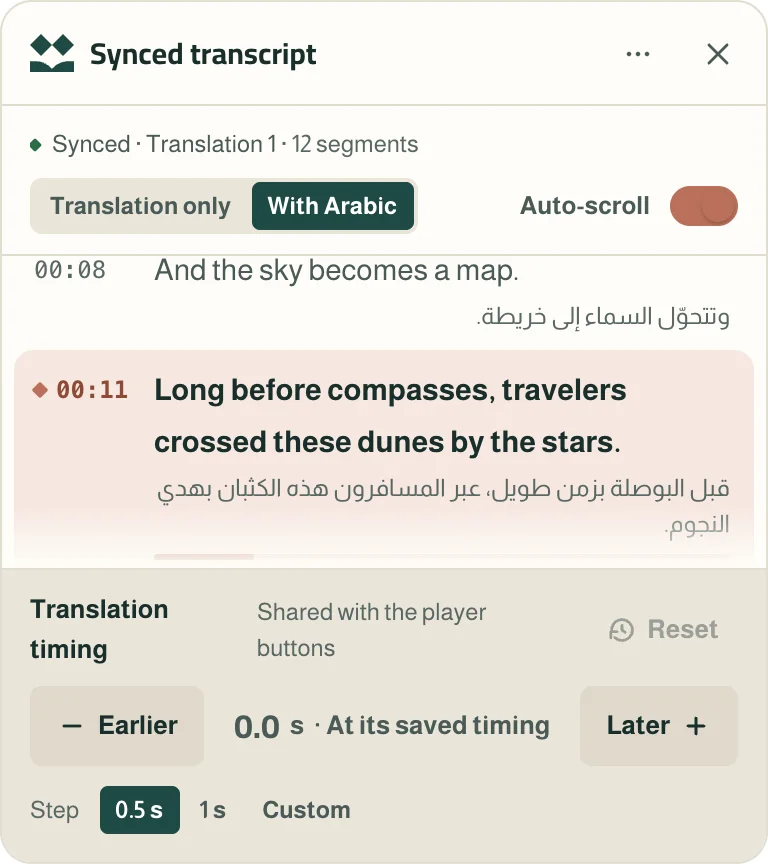
A video player with an English line over the Arabic original, and Tarjuman’s buttons on its barThe synced transcript panel: the translation with times and the current segment highlighted, with Earlier, Later and step controls below

How it works

Four steps, with the translation in your hands

Tarjuman doesn’t translate anything itself and doesn’t connect to any model. It prepares the file and the instructions for you, and shows what you bring back.

  1. In Tarjuman

    Extract

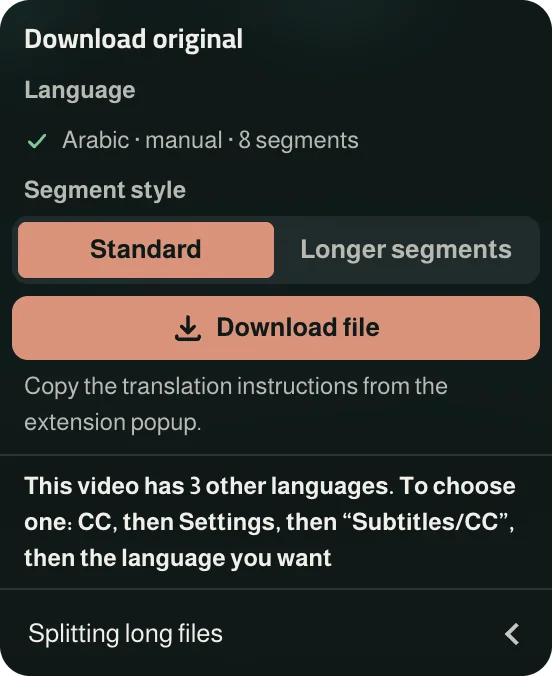
    Open a YouTube video and choose the subtitle language from the CC button in the player. Then download its file with Tarjuman’s button on the player bar.

    The Download original menu: language, segment style, and the Download file button
  2. In Tarjuman

    Copy the instructions

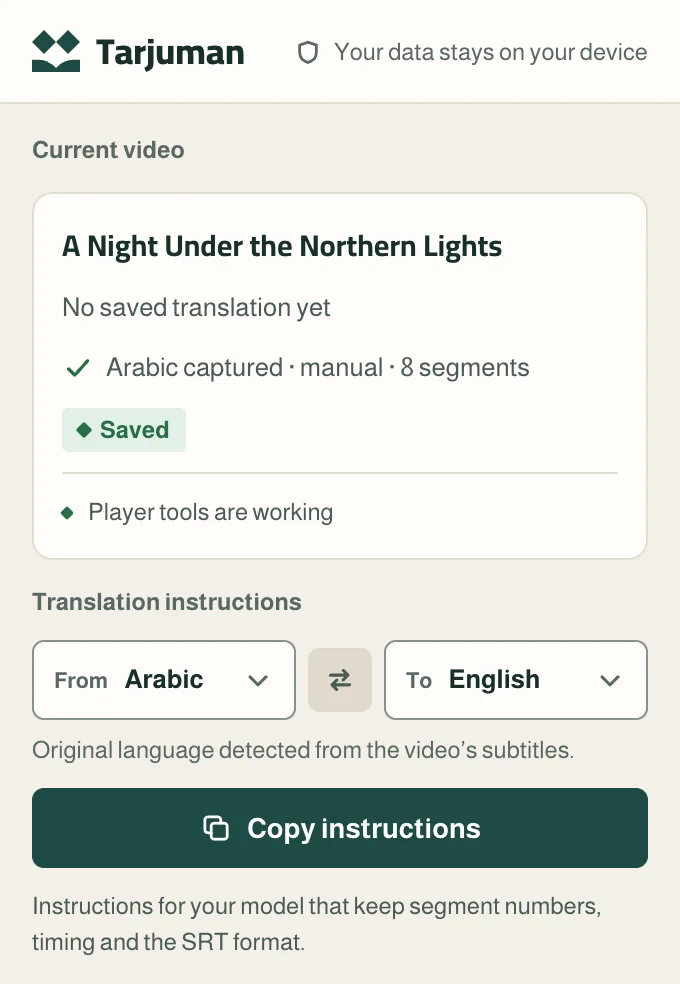
    Open the Tarjuman popup from the browser toolbar. “From” is filled in with the file’s language as YouTube sent it. Choose “To”, then press “Copy instructions”. Since version 2.1.1, they’re copied in the extension’s interface language.

    Tarjuman’s popup: the current video, translation instructions from Arabic to English, and the Copy instructions button
  3. Outside Tarjuman

    Translate

    Send the file and the instructions to the AI model you choose. Tarjuman doesn’t connect to any model, so the choice is yours.

  4. In Tarjuman

    Watch

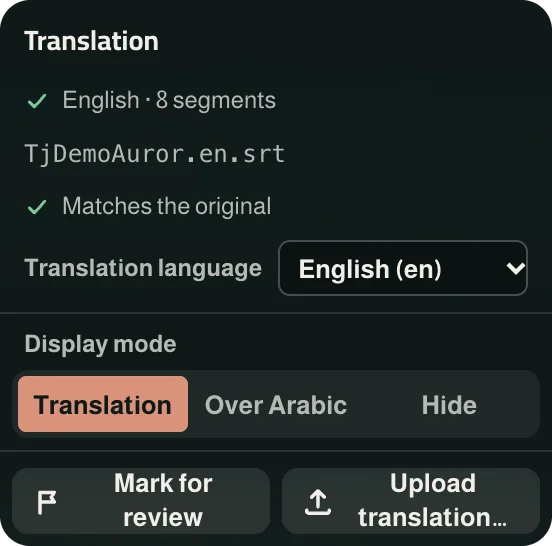
    Upload the translated file and your translation appears over the video. It’s saved for whenever you come back.

    The Translation menu after uploading: file name, Matches the original, translation language and display mode

Features

What Tarjuman does with your translation

An editor for review

Edit text and timing, merge and split segments, search and replace, and mark what you want to come back to. It also prepares a file with the missing segments so you can complete them with your model.

Comparison with the original

When you upload your file, Tarjuman compares it with the original you downloaded: what’s missing, what’s extra, where the timing has drifted, and what’s left untranslated. It never changes anything in your file silently.
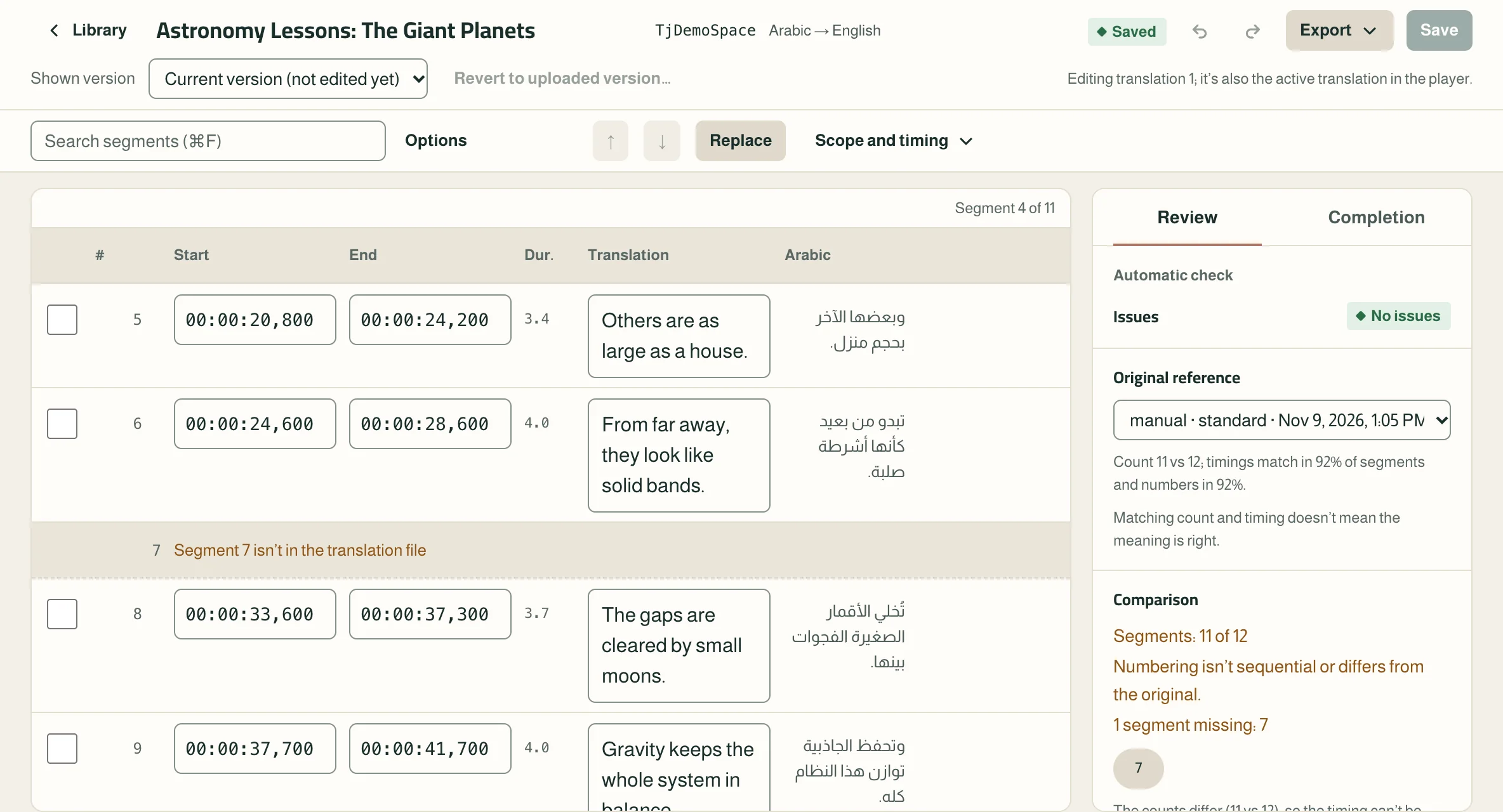
The editor: segments with start, end, translation and original, a row saying segment 7 isn’t in the translation file, and the review and comparison panel

From any language to yours

Tarjuman accepts every subtitle track YouTube offers for the video, manual or auto-generated, YouTube’s auto-translation labeled with its source language, and any SRT file in any language. YouTube alone decides which languages each video has: Tarjuman doesn’t create a track YouTube doesn’t offer, and doesn’t switch tracks for you, so you pick one yourself from YouTube’s menu.

The Download original menu: language, segment style, and the Download file button

Over the video itself

Your translation appears in the text direction of its language, on its own or over the original. It works in default view, theater mode and fullscreen, and hides during ads.

The English translation line over the Arabic original in the player, on a night desert scene

Timing from the player bar

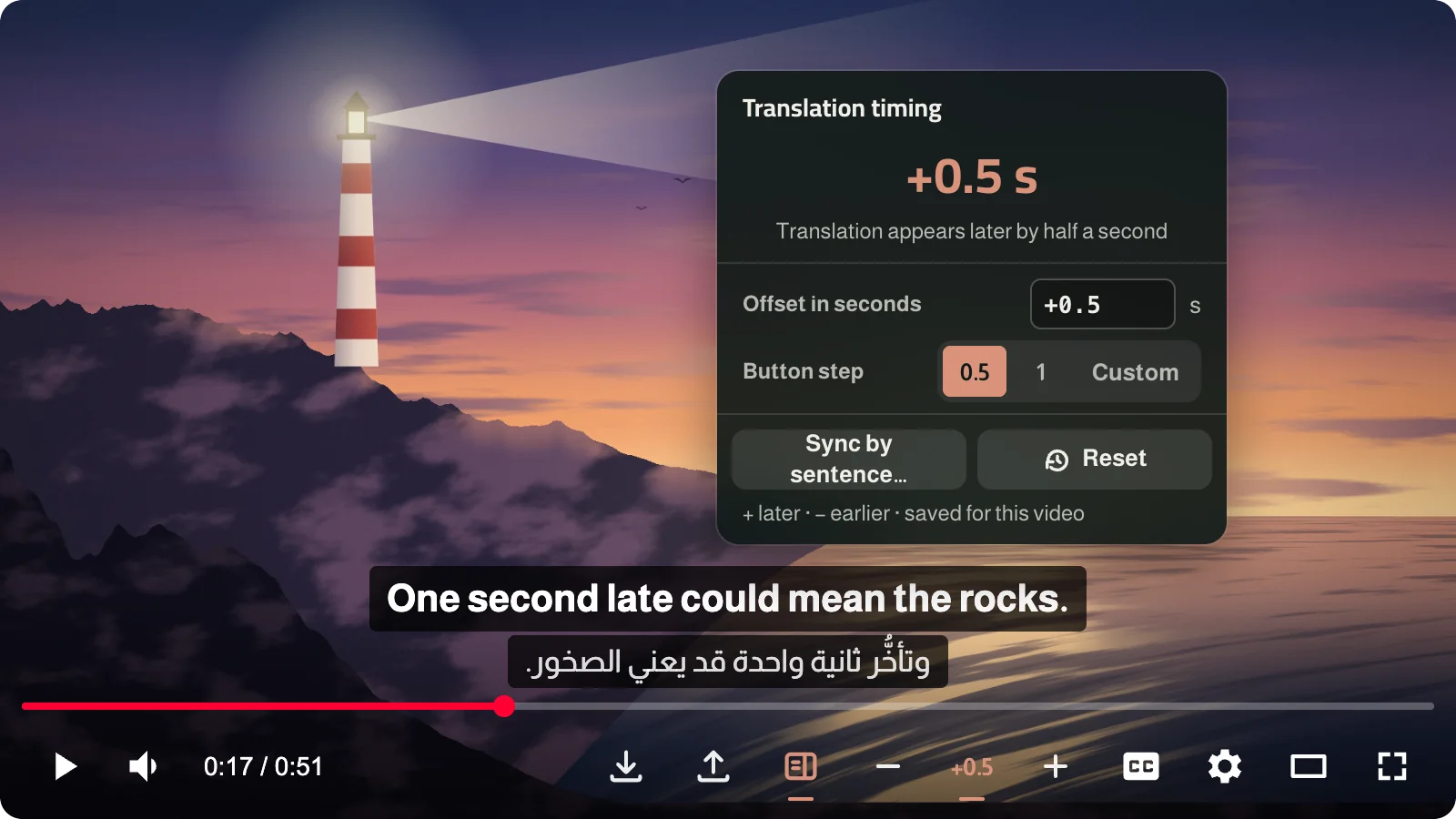
The − and + buttons on the player bar move the translation earlier or later, and “Sync by sentence…” sets it from a sentence you hear. Timing is saved with each translation.

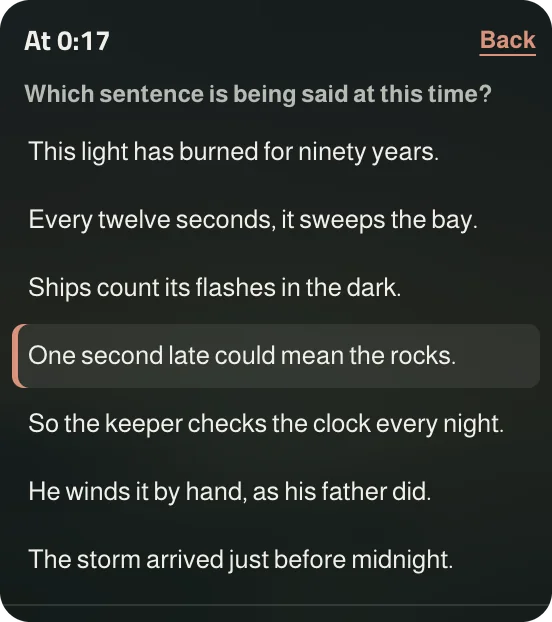
The Translation timing menu over the player: an offset of +0.5 s, button step, Sync by sentence and ResetThe Sync by sentence dialog: sentences around the current moment, with the likely one highlighted

Your Library, all in one place

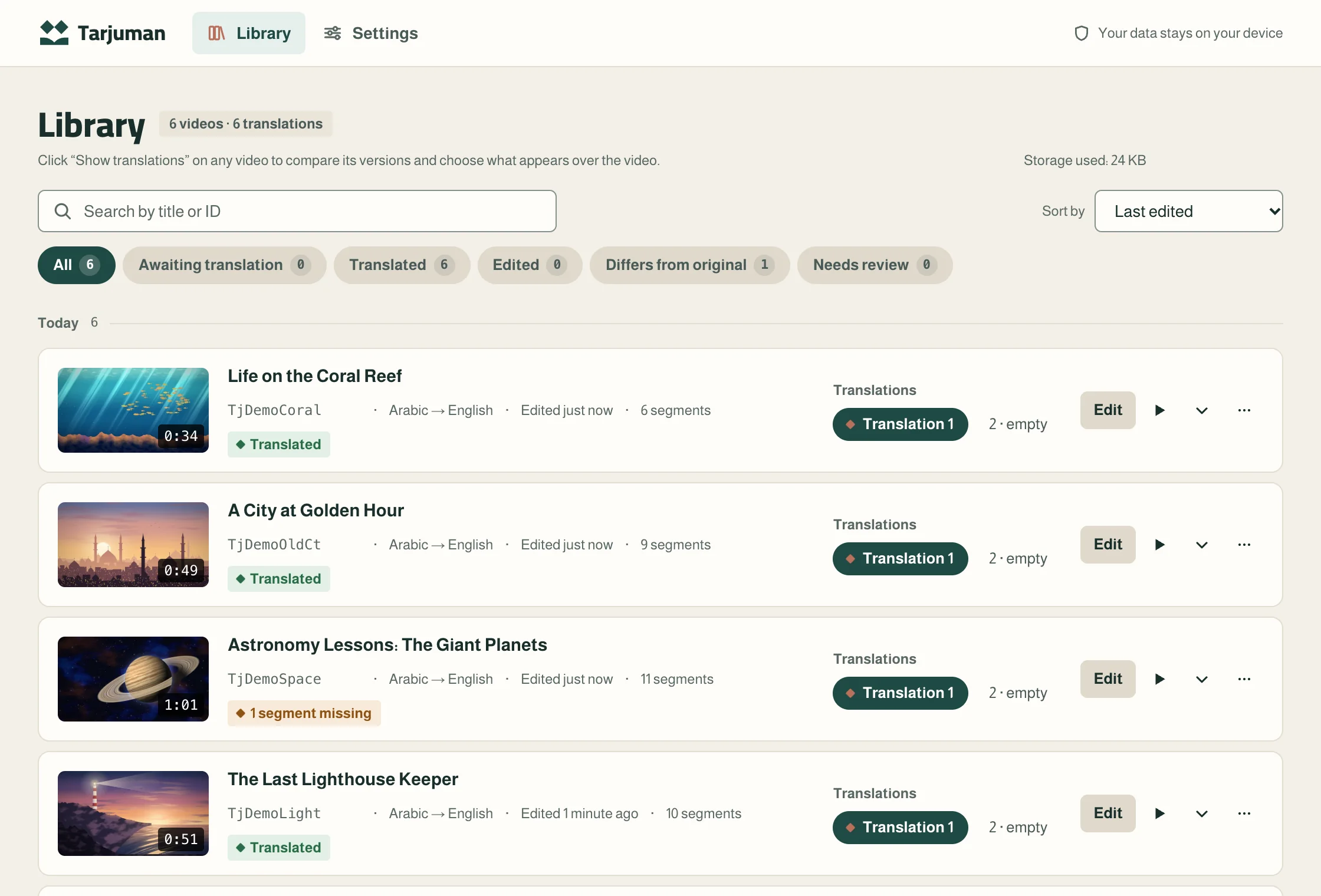
Every video you’ve translated, with up to three translations per video, the two languages of each translation, and a previous version of what you replaced. Plus export, and a backup you can move to another browser.

Library: six videos with thumbnails, languages, segment counts and the status of each translation

Synced transcript

A panel beside the video shows the whole translation with the current segment highlighted, so you can read what came before and what’s coming. It stays closed until you open it from its button.

The synced transcript panel: the translation with times and the current segment highlighted, with Earlier, Later and step controls below

Try it here

Style it your way

Display mode, font, size, background and position, all from Settings. The fonts are bundled with the extension, and any characters they don’t include are drawn with your device’s fonts. The extension’s interface is in Arabic or English, which you choose in the same Settings.

Subtitle font
Background
Position

A demo of the options in Settings › Display.

Your data

Where your data goes, and what Tarjuman doesn’t do

Where your data goes

  • On your device

    Your translations and settings are in the extension’s storage in your browser. No server keeps them, and nothing is synced.

  • To YouTube

    Video thumbnails in “Library” are requested from YouTube’s servers using the video ID. A switch turns them off, and in Firefox they’re requested only with your consent.

  • To the model you choose

    What you send it yourself: the file and the instructions. The extension doesn’t connect to it.

  • To the reports channel

    A problem report, when you write it, see everything in it, and press “Send report”. No translation text or video ID is attached automatically.

  • Nothing else

    No usage tracking, no ads, and no selling of your data.

Full privacy policy

What it doesn’t do

  • It doesn’t download video or audio, and doesn’t request subtitle files on its own: it reads a copy of the subtitles the player requested when you turned them on.
  • It doesn’t create subtitles in a language YouTube doesn’t offer for the video, and doesn’t switch tracks for you.
  • It doesn’t translate anything itself, and needs no account or API key.
  • It doesn’t work on Shorts, on live streams in progress, or on players embedded in other sites.
  • It’s for desktop computers only, not phones.

Browsers

For desktop, in four browsers

Tarjuman is published on Chrome Web Store, which Brave also installs from, and on Microsoft Edge Add-ons. It isn’t published on Firefox Add-ons yet; once it is, you’ll find the link here.

  • Chrome

    From Chrome Web Store, version 130 or later

    Status: Available

  • Brave

    From Chrome Web Store, on Chromium 130 or later

    Status: Available

  • Edge

    From Microsoft Edge Add-ons, version 130 or later

    Status: Available

  • Firefox

    From Firefox Add-ons, version 144 or later

    Status: Coming soon

Install

From the store to your first video

  1. Install Tarjuman from your browser’s store

    In Chrome and Brave, from its Chrome Web Store page. In Edge, from its Microsoft Edge Add-ons page. Coming soon to Firefox Add-ons.

  2. Pin its icon to the browser toolbar

    Click the extensions icon (the puzzle piece), then the pin next to “Tarjuman”. That’s where you’ll copy the translation instructions.

  3. Open a YouTube video

    Then start with First use on the Help page.

Permissions on install: Storage, downloads, and access to www.youtube.com pages only. A fourth, optional permission is requested only when you send a report. In Firefox there are two optional consents: one for reports, which Firefox shows in the install dialog for you to turn on or off, and one for Library thumbnails, when you turn them on. Details are under Permissions.

Your translation over the video, from any language to yours